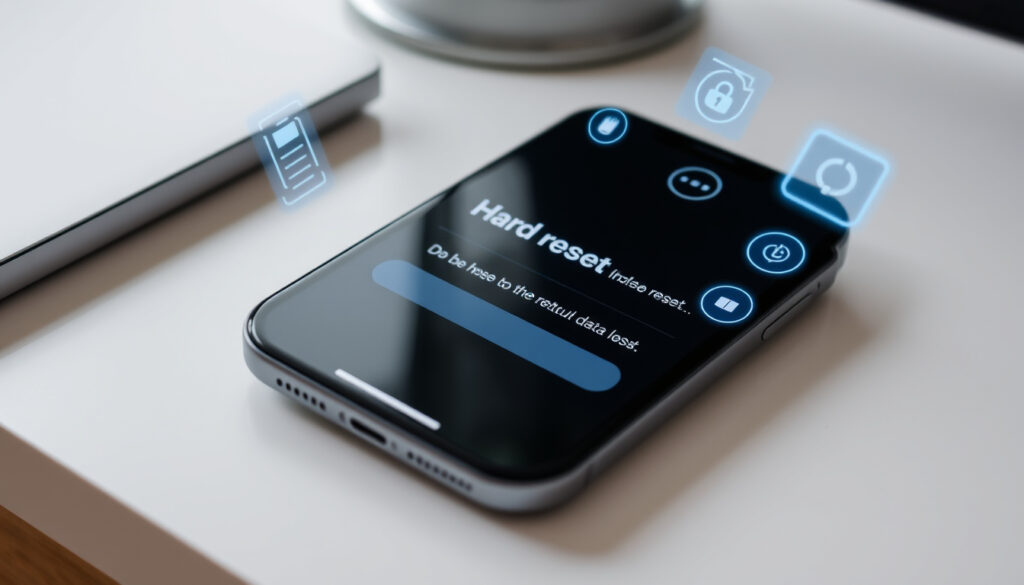
How to Hard Reset iPhone – Steps for All Models No Data Loss
An iPhone that freezes, becomes unresponsive, or refuses to load apps can disrupt daily routines. For many users, a force restart—commonly called a hard reset—offers a straightforward fix without risking personal data. Understanding the correct button combinations for your specific model ensures the process works as intended.
Unlike a factory reset, a hard reset forces the device to cycle power and reboot its operating system. No photos, messages, apps, or settings are removed during this procedure. The result is typically a fully functional iPhone returned to normal operation within seconds.
This guide covers every iPhone generation still in active use, from the iPhone 6s through the latest models. Each section details the exact buttons to press, how long to hold them, and what to expect once the Apple logo appears.
How to Hard Reset Your iPhone (Step-by-Step by Model)
Apple provides a consistent method for force-restarting iPhones, though the button sequence changes depending on whether your model includes a physical home button. The process takes roughly 30 seconds and requires no access to Settings or passcode entry.
- Duration: 30 seconds
- Applies to: All models (6s and newer)
- Purpose: Fix freezes and crashes
- Alternative: Soft restart via Settings
iPhone 8 and Newer (Including SE 2nd and 3rd Gen)
These models lack a home button entirely. The restart sequence relies on volume buttons combined with the side button.
- Press and quickly release the Volume Up button.
- Press and quickly release the Volume Down button.
- Press and hold the Side button until the Apple logo appears (typically 10 to 20 seconds).
- Release the Side button once the logo is visible.
iPhone 7 and iPhone 7 Plus
The iPhone 7 generation marked Apple’s transition away from the home button for navigation, though the physical button remained for Touch ID. Force restarting uses a different combination:
- Press and hold the Volume Down button and the Side button simultaneously.
- Keep both held until the Apple logo appears (approximately 10 seconds).
- Release both buttons.
iPhone 6s, Original SE, and Earlier Models
Older iPhones with physical home buttons require the classic two-button hold:
- Press and hold the Home button and the Top (Sleep/Wake) button together.
- Continue holding until the Apple logo displays (up to 30 seconds on these models).
- Release both buttons.
| iPhone Model | Button Sequence | Approximate Hold Time |
|---|---|---|
| iPhone 8, X, 11, 12, 13, 14, 15, 16, SE (2nd/3rd gen) | Volume Up → Volume Down → Side (hold) | 10–20 seconds |
| iPhone 7 / 7 Plus | Volume Down + Side (hold together) | ~10 seconds |
| iPhone 6s, SE (1st gen), earlier | Home + Top/Side (hold together) | Up to 30 seconds |
Does a Hard Reset Delete Data on iPhone?
A force restart does not erase any content from your device. The process simply cuts power and restarts the operating system, leaving every photo, contact, app, and setting intact. This distinction matters because many users mistakenly associate “reset” with data deletion.
After completing a hard reset, your iPhone will still require your passcode, Face ID, or Touch ID to unlock. The security layer remains active and unchanged, according to Apple’s official troubleshooting documentation.
A force restart is a power cycle, not a wipe. No iOS data, settings, or content is removed during the process. Users have reported this behavior consistently across all models running iOS 14 through iOS 18.
Hard Reset vs. Factory Reset vs. Soft Reset: Key Differences
Confusion around terminology leads some users to avoid hard resets when they need them—or to attempt the wrong procedure. Three distinct reset types exist, each serving a different purpose:
- Soft Restart: A normal shutdown and power-on through Settings or the slide-to-power-off gesture. No data affected. Best for routine refreshes.
- Hard Reset (Force Restart): A button combination that forces an immediate reboot without accessing software menus. No data affected. Designed for frozen or unresponsive devices.
- Factory Reset: A full erasure of all content and settings through Settings or Finder/iTunes. All data is permanently deleted. Requires a prior backup to avoid permanent loss.
Only the factory reset removes information. A force restart cannot bypass device locks, erase content, or replace a full system restore, according to guidance from Apple’s support pages and third-party repair resources.
If your iPhone freezes or apps stop responding, try a force restart first. If the device works normally but you want a clean slate before selling it, perform a factory reset—but only after backing up your data.
When and Why to Hard Reset a Frozen or Unresponsive iPhone
Frozen screens and unresponsive touch input are the most common reasons to force restart an iPhone. These situations typically arise during app crashes, iOS update glitches, or temporary software conflicts. The hard reset interrupts the stuck state and allows the system to reload cleanly.
Troubleshooting Sequence for Frozen iPhones
Apple-aligned troubleshooting recommends a step-by-step approach:
- Attempt a force restart using the button sequence for your model. This resolves most freezes without any data loss.
- Let the battery drain completely if buttons fail to respond, then recharge and try restarting normally. No official button-free alternative exists for unresponsive hardware.
- Enable AssistiveTouch (Settings > Accessibility > Touch) to access an on-screen restart option if touch input still partially functions.
- Update iOS or investigate specific app crashes if freezes recur after restarting successfully.
- Consider a factory reset as a last resort, ensuring a current backup exists before proceeding.
The force restart method works across all iOS versions from iOS 14 onward. Apple has not introduced model-specific changes for iPhone 15, 14, or 13 series in the restart procedure, according to documented support processes.
Situations Where Force Restart Applies
- The screen remains black or shows a spinning loader indefinitely.
- Touch input fails to register taps or swipes.
- Apps refuse to open or crash immediately upon launch.
- The device feels warm but displays no response to button presses.
Understanding iPhone Reset Methods in Context
The hardware button sequences for iPhone restarts have evolved alongside the device’s physical design. When Apple removed the home button with the iPhone X in 2017, the industry-standard restart method changed accordingly. Users holding older models with physical buttons follow a different routine than those with gesture-based navigation.
Apple officially documents these procedures in its support pages, recommending force restarts as the first troubleshooting step before pursuing hardware service or software reinstallation. This guidance reflects a broader industry consensus that power cycling ranks among the safest diagnostic actions available to consumers.
A force restart does not remove device locks, erase data, or bypass security. After restarting, you must still authenticate with your passcode, Face ID, or Touch ID to access your iPhone.
Sources and Official References
The procedures described in this guide align with methods documented by Apple and corroborated by independent repair resources. Button sequences and hold durations match those found in Apple’s official iPhone support documentation and video demonstrations from verified technical channels.
The button combinations for force-restarting iPhone models have remained consistent across iOS updates, with no model-specific variations introduced for the iPhone 15, 14, or 13 series.
— Apple iPhone support pages and third-party repair guides
Further reading and visual demonstrations are available through resources like Setapp’s iPhone reset guide and Apple’s official iPhone technical specifications for users experiencing persistent freezes or boot issues.
Next Steps If the Force Restart Does Not Work
In most cases, a properly executed force restart resolves temporary freezes within seconds. If the Apple logo fails to appear or the device continues unresponsive, additional steps may be necessary:
- Attempt the force restart sequence again, ensuring timing matches the recommended hold duration for your model.
- Explore DFU (Device Firmware Update) mode recovery using a computer with Finder or iTunes if standard restarts fail repeatedly.
- Contact Apple Support for hardware-level diagnostics if the issue persists across multiple attempts.
For those interested in related topics, this publication covers mobile gaming performance tips and broader smartphone troubleshooting strategies.
Frequently Asked Questions
Will a hard reset delete my photos and messages?
No. A force restart only interrupts power and restarts the operating system. Every photo, message, contact, and app remains stored on your device.
How do I force restart an iPhone 15?
Press and release Volume Up, then Volume Down. Press and hold the Side button until the Apple logo appears (10–20 seconds), then release.
What is the difference between hard reset and factory reset?
A hard reset forces a power cycle without deleting data. A factory reset erases all content and settings, requiring a prior backup to avoid permanent data loss.
Does a force restart fix frozen apps?
Yes. Force restarting clears the stuck state that prevents apps from responding. After the reboot, most apps reopen normally.
How long should I hold the buttons for a hard reset?
Hold times vary by model: 10–20 seconds for iPhone 8 and newer, about 10 seconds for iPhone 7, and up to 30 seconds for iPhone 6s and earlier.
Can I force restart my iPhone without buttons?
If touch input still works, you can enable AssistiveTouch from Settings > Accessibility > Touch and use the on-screen restart option. Otherwise, let the battery drain completely and recharge to attempt a normal restart.
Will my iPhone still require a passcode after hard resetting?
Yes. A force restart does not remove security credentials. You will need your passcode, Face ID, or Touch ID to unlock the device after the restart completes.
More related posts
 Red Dresses for Women: Styles, Lengths & Irish Shops
 A Fall from Grace – Meaning, Origin and Examples
 Apple Class Action Lawsuit: Claim Your Up to $95 Settlement Payment
 180 cm to Feet and Inches: Exact Converter & Height Guide
 The Facts of Life: Cast, Cancellation, Deaths & Revival
 Wheel of Fortune Tarot – Upright and Reversed Meanings
 What Is the Most Expensive Car in the World? [2026]
 Home Alone 2: Lost in New York – Cast, Trivia, Trump Cameo
