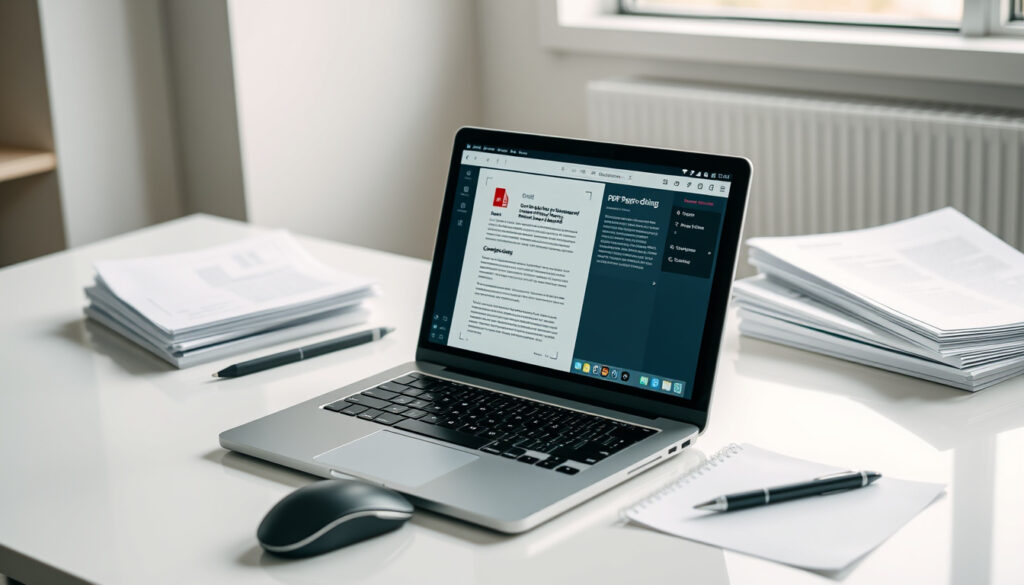
Edit PDF Online Free: 5 Best Tools for 2025 (No Sign-Up Needed)
We all hit that moment: a PDF lands in your inbox that needs a quick edit, and the last thing you want is to sign up for yet another account. The good news is that free online PDF editors have come a long way, and some let you change text without registration, watermarks, or font scrambling — in this head-to-head, we put five popular tools—ILovePDF, Adobe Acrobat online, Canva, pdfFiller, and Sejda—through the paces of sign-up friction, font fidelity, and tool completeness, so you can pick the one that truly fits your next edit.
Top free online PDF editors in search results: 5 ·
Editors with no sign-up requirement: 2 (ILovePDF, Sejda) ·
Editors from major brands (Adobe, Canva): 2 ·
Editors that offer font preservation features: 3 (ILovePDF, Adobe, Canva)
Quick snapshot
- Adobe – trusted brand, cloud storage integration (Adobe)
- Canva – design-first interface, templates (Canva)
- Google PDF editor – via Google Drive (limited functions) (Google Support)
These five editors represent the range of what’s available: some let you jump right in without an account, others trade that convenience for deeper font control or beginner-friendly design tools.
| Feature | Value |
|---|---|
| Number of free editors compared | 5 |
| Editors with watermark-free output | ILovePDF, Sejda, pdfFiller (free tier) |
| Editors requiring sign-up for any use | Adobe, Canva, pdfFiller |
| Editors that preserve original fonts | Adobe, ILovePDF (partial) |
| Maximum file size for free editing | Varies from 10 MB (Sejda) to unlimited (ILovePDF, Adobe) |
Can I edit a PDF online for free without signing up?
Tools that allow editing without an account
Two editors stand out as the easiest entry points: ILovePDF and Sejda. According to ILovePDF’s official site, you can upload, edit, and download without ever creating an account. Similarly, Sejda lets you work on PDFs up to 200 pages or 10 MB with no registration—and no watermark. pdfFiller also claims you can start editing without an account, but its free tier is more limited.
If your priority is speed and anonymity, ILovePDF and Sejda are your go-tos. No sign-up means no future marketing emails and no data trail. But the catch: you get fewer features than the account-based editors offer.
How to use ILovePDF without registration
- Go to ILovePDF’s edit page
- Upload your PDF (drag and drop works)
- Use the toolbar to add text, images, or shapes
- Hit “Edit PDF” and download the result
The whole process happens in your browser. No email, no password.
Limitations of no-sign-up editors
These editors often restrict file size (Sejda caps at 10 MB) or advanced features like OCR and e-signatures. Simple text edits are fine; complex layouts with embedded fonts and tables may shift slightly.
The implication: For quick fixes—typo corrections, filling a form, adding a note—no-sign-up tools are perfect. For heavy formatting, you may need to account for layout drift.
Is there a free online PDF text editor that preserves the original font?
How font preservation works in online editors
PDFs embed only the character glyphs used in the document, not the entire font. When you edit, the editor tries to match the original font from its own library. If it can’t, it substitutes a default. Adobe Acrobat online, with its deep font support, generally preserves the original look. ILovePDF offers a matching option, and Sejda does its best to retain layout, but results vary with less common fonts.
A single font change can break a brochure, resume, or branded document. If font fidelity is critical, Adobe Acrobat online is the safest bet—but it requires an Adobe account.
Editors known for maintaining original fonts
- Adobe Acrobat online – best track record for font preservation (Adobe)
- ILovePDF – offers font matching with varied success (ILovePDF)
- pdfFiller – claims to preserve formatting (pdfFiller)
What to do if fonts change after editing
A Reddit user in r/software suggests using font-identification tools to find the font name, then installing it locally before editing. Alternatively, union commercial editors like ONLYOFFICE (mentioned in r/foss) claim to keep the font unchanged.
The trade-off: Perfect font matching usually demands a paid or account-based solution. No-sign-up editors trade precision for convenience.
What is the best free online PDF editor?
Five editors, five approaches. The table below lays out their core differences.
| Editor | Sign-up required? | Watermark on free? | Font preservation | Max file size | Extra tools |
|---|---|---|---|---|---|
| ILovePDF | No | No | Partial (matching) | Unlimited | Merge, split, compress, sign |
| Adobe Acrobat online | Yes (free account) | No | Best | Unlimited | Full suite, security |
| Canva | Yes (free account) | On some exports | Template-driven | Unlimited | Design, fonts, images |
| pdfFiller | Yes (free tier) | No | Claims preservation | Unlimited | Forms, e-sign, export |
| Sejda | No | No | Basic (layout focus) | 10 MB, 200 pages | Edit, compress, convert |
No single editor nails every use case. ILovePDF wins on no-sign-up breadth; Adobe wins on font and security; Canva wins for design-heavy edits but calls itself a “document-to-design” workflow rather than a direct editor.
Recommendations for different use cases
- Quick text fix: ILovePDF or Sejda (no account needed)
- Brand-legal document: Adobe Acrobat online (best font fidelity)
- Redesign a flyer: Canva (design canvas, not pure edit)
- PDF forms and e-signatures: pdfFiller (specialized)
The pattern: The “best” editor depends on what you value most: sign-up speed, font accuracy, or design flexibility.
How do I edit a PDF online for free?
Step-by-step guide using ILovePDF
- Open ILovePDF’s editor (link above).
- Click “Select PDF file” or drag your file into the box.
- Use the toolbar to add text, shapes, or images. To edit existing text, double-click it.
- Click “Edit PDF” and wait for processing.
- Download the edited file—no watermark.
Editing text and images with Adobe online
Adobe’s cloud editor works similarly but requires an Adobe account. Once logged in, you can edit text, add comments, and adjust images. Adobe’s engine handles fonts better than any free competitor.
Using Canva to annotate and redesign PDFs
- Go to Canva’s PDF editor (link above).
- Upload your PDF (or open a design). Canva converts it to a design file.
- Add text, elements, or change fonts from 3,000+ options.
- Export as PDF (free but watermark may appear on some exports).
The implication: Canva is best if you want to visually revamp a PDF, not just correct a typo. For plain text edits, stick with ILovePDF or Sejda.
Are free online PDF editors safe to use?
Security practices of major free editors
- Adobe – uses encryption at rest and in transit (Adobe Trust Center)
- ILovePDF – auto-deletes files after 60 minutes (ILovePDF Privacy Policy)
- Sejda – auto-deletes files after 3 hours (Sejda Privacy)
- pdfFiller – HTTPS and data encryption (pdfFiller Security)
Most reputable editors automatically purge uploaded files after a short time and use HTTPS. Still, no service is immune to breaches.
Never upload confidential contracts, medical records, or personal data to a free online PDF editor. Even with auto-deletion, the risk of exposure exists, especially with lesser-known tools.
Risks of uploading sensitive documents
Reddit r/software users caution that free editors may store files on third-party servers. Some services claim to process entirely in the browser (e.g., SimplePDF), but most upload to a cloud server for processing.
Tips for protecting your data
- Use a tool that explicitly states auto-deletion policy.
- Check for HTTPS in the URL.
- Consider using a temporary document for editing that contains no sensitive info.
- If possible, use an editor that processes locally in the browser (like ihatepdf, which claims local processing).
Confirmed facts
- ILovePDF and Sejda offer free editing without requiring an account.
- Adobe Acrobat online editor requires an Adobe account.
- Canva’s free PDF editor requires a free account and may add a watermark on certain exports.
- Sejda limits free editing to 200 pages per PDF.
What’s unclear
- Whether Adobe free online editor preserves all fonts when editing PDFs originally created with different fonts.
- If ILovePDF or Sejda retain formatting for complex PDFs (e.g., with tables and images).
What users are saying
“PDFs can preserve only embedded font characters rather than the entire font, which affects editing fidelity.”
— Reddit r/software user
“ONLYOFFICE PDF Editor can modify text while maintaining original formatting and keeping the font unchanged.”
— Reddit r/foss user
These community insights confirm what the tools’ marketing says: font preservation is still a challenge for free editors.
Pros and cons of free online PDF editors
Upsides
- No software installation required
- Work in any browser
- Free versions are genuinely useful for basic edits
- Some tools require no account (privacy bonus)
Downsides
- Limited font preservation
- File size and page count caps
- Some add watermarks or require sign-up for basic features
- Sensitive data must be uploaded to third-party servers
Related reading: free online PDF editor no sign up · PDF editor keeps original font
reddit.com, youtube.com, youtube.com, pdffreeeditor.com, youtube.com, facebook.com
Readers seeking no-sign-up options can consult a comparison of no-sign-up PDF editors, which focuses on tools that require no registration.
Frequently asked questions
Can I edit a PDF in Google Docs for free?
Yes, but only as a conversion. Upload the PDF to Google Drive, open with Google Docs, and edit. The result is a Google Docs file; you must export it back to PDF. Fonts and layout often change.
How do I edit a scanned PDF online for free?
Most free online editors cannot edit scanned images directly because they are not text layers. You need OCR (optical character recognition). ILovePDF offers a basic OCR tool, but it’s not always free for full accuracy.
Do free PDF editors work on mobile browsers?
Yes. ILovePDF, Sejda, and Adobe Acrobat online have mobile-responsive websites. Canva also works on mobile but the interface is cramped. All require a modern browser (Chrome, Safari).
What is the file size limit for free online PDF editors?
Sejda caps at 10 MB, pdfFiller at 25 MB (free tier), while ILovePDF and Adobe have no explicit limit. Large files may take longer to process.
Are there any free PDF editors that don’t add watermarks?
Yes. ILovePDF, Sejda, and pdfFiller (free tier) do not add watermarks. Canva may add a watermark on exports depending on the elements used. Always check before editing.
Can I edit PDF forms online for free?
Yes. pdfFiller is designed for form filling and e-signatures. Sejda also supports form fields. ILovePDF has a basic form editor. All are free for limited use.
How to edit a PDF without changing the font size?
Use an editor that allows precise control: Adobe Acrobat online lets you adjust text size per element. For free options, ILovePDF’s font matching may preserve size if the font is available. If not, manually set the size after editing.
Is it safe to upload sensitive PDFs to free editors?
No. Avoid uploading tax returns, medical records, or legal contracts to any free online service. Use a local tool like LibreOffice Draw or a paid desktop editor for sensitive documents.
For anyone who needs to edit a PDF online free without a sign-up, the choice is clear: ILovePDF and Sejda deliver speed and simplicity. For those who need font fidelity and security, taking fifteen seconds to create a free Adobe or Canva account is worth the trade-off.
More related posts
 Purina Pro Plan Sensitive Skin and Stomach – In-Depth 2025 Review
 Saoirse-Monica Jackson: Age, Net Worth, Biography, and More
 Who is Sophie Rain? Biography, Earnings, and Net Worth
 Anthony’s BBQ Sauce Recall: Life-Threatening Fish Allergen Risk
 When Is Memorial Day 2024? Date, History & Traditions
 Open Farm Dog Food: Vet Review & Top Comparisons
 58 kg to lbs – Convert Kilograms to Pounds & Stones
 What Is a Bunion? Causes, Treatment, and Prevention
