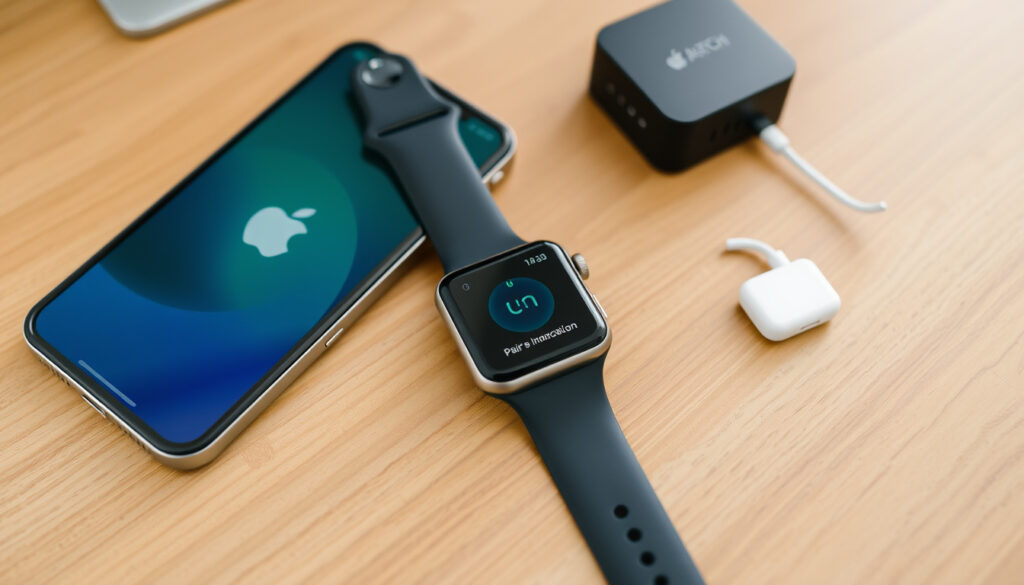
How to Pair Apple Watch to New Phone: Step-by-Step
Getting a new iPhone is exciting, until you realize your Apple Watch is still talking to the old one. Pairing to a new phone is straightforward when you follow the right order, and the key step most people miss happens before you even open the Watch app — this guide walks through the official unpair-and-pair workflow, including what to do if your old phone is gone or broken.
Compatible iPhones: iPhone 8 or later for Apple Watch Series 4 and newer · Pairing time: Approximately 5 minutes under normal conditions · Backup required: iCloud backup is created automatically upon unpairing · Data loss risk: Minimal if iCloud backup is enabled
Quick snapshot
- Unpairing creates an iCloud backup of the watch (Apple Support)
- Pairing requires the same Apple ID on both devices (Apple Support)
- Erasing the watch removes Activation Lock when linked to your Apple ID (Apple Support)
- Whether all third‑party app data transfers without a backup (Apple Support Community)
- Unpairing and re‑pairing typically takes 5–10 minutes (Apple Support)
- Restore from backup or set up as new; cellular plan can be kept or removed (Apple Support)
Four key data points, one standout: the backup that’s created during unpairing is the safety net that makes the whole transfer possible.
| Attribute | Details |
|---|---|
| Number of steps | 5–7 typical |
| Backup size | Varies; iCloud backup up to 1 GB |
| Unpair time | A few minutes |
| Restore time | Depends on backup size |
| Minimum software requirement | iOS 16 or later for watchOS 9+ (Apple Support) |
| Activation Lock removal | Requires Apple ID password (Apple Support) |
| Bluetooth and Wi‑Fi required | Both must be enabled during pairing (Apple Watch User Guide) |
| Apple Watch must be unlocked | And on your wrist before starting (Apple Support) |
How do I pair my existing Apple Watch to my new iPhone?
Preparing your Apple Watch and new iPhone
- Update both devices to the newest available versions (Apple Support)
- Keep your Apple Watch unlocked and on your wrist
- Make sure your new iPhone is connected to Wi‑Fi or cellular
- Have your Apple Watch passcode ready (Apple Support)
Step-by-step pairing process
- Open the Apple Watch app on your new iPhone.
- Tap Pair New Watch (Apple Watch User Guide).
- Bring your iPhone near the Apple Watch and position the watch in the viewfinder when prompted.
- Wait for the pairing animation to complete, then tap Continue.
- Choose Restore from Backup if you have a recent iCloud backup, or set up as new.
- Sign in with the same Apple ID used on the old phone (Apple Support).
What to do if the Apple Watch app doesn’t open
If the app doesn’t appear, restart your iPhone. Pairing can also be initiated by bringing the iPhone near the watch and tapping Continue when the pairing screen appears (Apple Watch User Guide).
The implication: getting the unpair step right eliminates most problems.
Skipping the unpair step (or erasing) is the #1 reason pairing fails. The old phone doesn’t have to be present, but the watch must be removed from the previous account to avoid Activation Lock.
How to unpair an Apple Watch and pair with a new phone?
Unpairing from the old iPhone
- Open the Watch app on your old iPhone.
- Tap My Watch > All Watches.
- Tap the info icon next to your watch, then tap Unpair Apple Watch (Apple Support).
- Enter your Apple ID password to disable Activation Lock.
- Unpairing automatically creates an iCloud backup of the watch.
Unpairing directly from the Apple Watch (if old phone is unavailable)
Go to Settings > General > Reset > Erase All Content and Settings (Apple Support). This removes all data and Activation Lock when the watch is still linked to your Apple ID. If you have iCloud backup, select Erase All Content and Settings and confirm — the watch will restart as factory new.
Pairing to the new iPhone after unpairing
After unpairing or erasing, follow the standard pairing steps in the guide above. The watch will appear as a new device in the Apple Watch app.
The pattern: always aim to unpair before erasing.
Can I pair my watch without my old phone?
If you have the old phone but it’s not available
If the old phone is powered off or not nearby, you can still unpair by erasing the watch directly as described above. No need to locate the old device.
If the old phone is lost or broken
- Erase the Apple Watch from the watch itself (Settings > General > Reset > Erase All Content and Settings).
- Alternatively, use iCloud.com or Find My to erase the watch remotely (Apple Support Community).
- After erasing, sign in to iCloud on the new iPhone, then pair the watch again in the Apple Watch app.
Using iCloud backup to restore
If you had iCloud backup enabled on the old watch (created during the last successful unpair), you can restore that backup when setting up on the new phone. Without a backup, some data — especially third‑party app settings — may be lost.
You still need your Apple ID and password. Activation Lock will remain active if the watch is not erased while still linked to your account. Without that, the watch cannot be paired to a new iPhone.
The consequence: account credentials are non‑negotiable.
What if you can’t pair your Apple Watch with a new iPhone?
Check compatibility and software requirements
- Your new iPhone must run iOS 16 or later for watchOS 9+ (Apple Support).
- Your Apple Watch should be charged above 50%.
Ensure Bluetooth and Wi-Fi are on
Both Bluetooth and Wi‑Fi must be enabled on the iPhone. Go to Settings > Bluetooth and Settings > Wi‑Fi to verify.
Restart both devices
Restart the iPhone and Apple Watch. For a hard restart on the watch, press and hold the side button until the power menu appears, then slide to power off.
Reset network settings
If pairing still fails, reset the iPhone’s network settings (Settings > General > Transfer or Reset iPhone > Reset > Reset Network Settings). This clears Wi‑Fi passwords and Bluetooth pairings, so you’ll need to reconnect after.
If all else fails, erase the Apple Watch and set it up as new (Apple Support).
The fix: erasing resets everything.
How do you unpair an Apple Watch without the phone it’s paired to?
Unpairing from the watch itself
Open Settings on your Apple Watch, tap General > Reset > Erase All Content and Settings. This removes all content, including the pairing, and disables Activation Lock if the watch is still linked to your Apple ID (Apple Support).
Preserving data through iCloud backup
If the watch had been previously backed up via iCloud (which happens automatically during normal unpairing from an old phone), you can restore that backup after re‑pairing. Data created after the last backup will be lost.
What to do if you forgot the watch passcode
You cannot erase the watch from the device without the passcode. In this case, you must force‑restart the watch and erase it using the watch’s internal reset sequence (press and hold the side button and Digital Crown for 10 seconds, then release when the Apple logo appears and follow the on‑screen prompts). Alternatively, use Find My on iCloud.com to erase the watch remotely (Apple Support Community).
“Unpair your Apple Watch from your iPhone to save a backup of your Apple Watch data, then pair it with a new iPhone.”
— Apple Support (official help page)
“If the old iPhone is unavailable, you can erase the Apple Watch directly from the watch itself by going to Settings > General > Reset > Erase All Content and Settings.”
— Apple Support Community
What we know and what’s unclear
Confirmed facts
- Unpairing creates an iCloud backup (Apple Support)
- Pairing requires the same Apple ID on both devices (Apple Support)
- Erasing the watch removes Activation Lock (Apple Support)
- Bluetooth and Wi‑Fi must be on (Apple Watch User Guide)
What’s unclear
- Whether third‑party app settings always survive without a backup
- Exact pairing time under heavy network congestion
- Reliability of iCloud.com erase feature for Activation Lock removal (Apple Support Community)
youtube.com, support.apple.com, support.apple.com, support.apple.com, youtube.com, discussions.apple.com, support.apple.com, youtube.com
If you’re upgrading your device, you’ll find that pairing Apple Watch to a new iPhone follows a similar step-by-step process whether you have both phones or just the new one.
Frequently asked questions
Does unpairing delete my activity rings?
No. Activity data is synced to iCloud and Health. After re‑pairing, it reappears on the new iPhone. However, any data created between the last backup and the erasure may be lost.
Can I pair my Apple Watch to multiple iPhones?
No. An Apple Watch can pair with only one iPhone at a time. You must unpair before switching.
Will my Apple Watch work with a family member’s iPhone?
Yes, but you must unpair from your own iPhone first, then pair to the family member’s. Each watch is tied to one Apple ID at a time.
How do I know if my Apple Watch is compatible with my iPhone?
Check the watchOS version. Apple Watch Series 4 and newer require iPhone 8 or later running iOS 16+ (Apple Support).
What happens to my Apple Pay cards after unpairing?
Cards are removed from the watch. You can add them again after re‑pairing using the Watch app on the new iPhone.
Can I use my Apple Watch while pairing with a new iPhone?
No. The watch will show a pairing screen during setup and cannot be used until pairing is complete.
How often do I need to re‑pair my Apple Watch?
Only when you get a new iPhone or need to reset the watch. Daily use does not require re‑pairing.
For anyone moving to a new iPhone, the choice is clear: unpair from the old phone when possible, or erase the watch directly if the old phone is gone. The few minutes spent on the correct first step save hours of troubleshooting later.
Related reading: iPhone 13 Release Date: When It Came Out & Still Worth Buying · Apple Class Action Lawsuit: Claim Your Up to $95 Settlement Payment
More related posts
 Demon Slayer Infinity Castle Arc: Release Date & Movie Trilogy
 My Wife and Kids Cast: Where Are They Now in 2025
 Amazon Customer Service Number – US, UK & Ireland Info
 Sweetpea TV Series: Plot, Cast, Season 2 & Where to Watch
 How Many Mission Impossible Movies Are There
 How to Train Your Dragon Cast: 2025 Live-Action Actors & Original Voices
 Can’t Buy Me Love – Beatles History, Meaning, Facts
 T-Mobile Phone Deals – Save Up to $830 on Flagships
